Introduction and prerequisites
Hello and welcome. My name is Amul and you are watching Tubemin. In this video I'm going to show you how to install OpenCart on your web hosting server using cPanel. So let's get started. Before we get started there are a few prerequisites that you want to make sure that your server is pre-configured with. So the very first thing you want to have is PHP 7.3 set as a default on your server. So to do so you simply go to your select PHP version and click on it and simply go ahead and select PHP 7.3. That's the recommended one. Do not go for 7.4. It's still not supported by most of CMSs out there, so go with 7.3, that's the recommended one. You also want to make sure you've got PDO MySQL extension enabled and MySQLi. So these two extensions are enabled; go ahead and enable them if they are not and then come back to this cPanel.
Accessing Softaculous App Installer
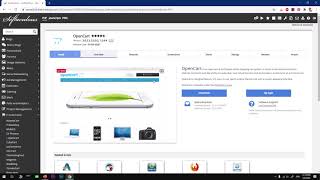
Irrespective of your hosting company the cPanel interface is going to be almost very similar to this one. So to install any application, any CMS or any framework or any e-commerce platform on your web hosting, cPanel comes with Softaculous apps installer that lets you install these packages with few clicks only. So you can go ahead and click on this. This will be on the very top, or what you can do you can scroll down and look for this section called Softaculous Apps Installer and look for that OpenCart. But if it doesn't appear here, go ahead and look for E-commerce under categories like this. I'm going to open this in a new tab. I'm just pressing and holding down the Control key and pressing on the mouse. So this is basically the e-commerce section on this Softaculous apps installer. You can go ahead and look for OpenCart and here comes the OpenCart installer. This is a quick installer.
Opening the installer and selecting OpenCart
Otherwise you simply go ahead and click on this Softaculous apps installer and here you go with this e-commerce tab and then look for OpenCart. So you will have the same thing either way. Now I'm going to close one of these and then let's go ahead and install it. So to install it you simply go ahead and click on Install. Now, but there's one more thing that you want to make sure you got right and that is your domain name. So if you have a domain name that is not yet added on to this cPanel or web hosting account you want to look for Add-on Domains. Click on it and add your domain before you start installing this OpenCart on your particular domain.
Adding and verifying your domain
So go ahead and type in your domain name with extension, hit Add. And if your domain is with Namecheap web hosting, if your domain is also with Namecheap then it's going to be automatically verified and added. If your domain is with some other domain registrar then you will have to verify it manually and on the next page you will have the very clear instruction what you need to do. So this will take up to 10 minutes maximum. Once it's added you will have access to those domains or just a domain from this installation page. Now to install it we will go ahead and click on Install Now.
Installer options: version, protocol, domain
And here it selects the most recent version or the latest version of OpenCart. You can see you have few options. You can go with 2.3, 1.5 and the most latest one is 3.0.3.3. Go ahead and select it and go ahead and select appropriate protocol as well. I'll go with this HTTPS. And go ahead and select your domain name. So this HTTPS which is basically SSL that you get for free from most of the web hosting companies these days. With Namecheap what you get is they install it automatically whenever you install any application or CMS on their platform for first year absolutely free and then you have to pay for it. And on the other hand other web hosting service providers will have paid versions or they will go ahead and install the Let's Encrypt which is going to be free forever. Most of them will go ahead and auto renew it on your behalf.
Here we go. So go ahead and select your domain name data directory. This is where it's going to be. So I'm going to say ajob, that's the name of the domain here. Here comes the store name. So I'm going to say Ajob Store. Home supplies. Type in your name and this is going to be your address. So just a random address. Just put your phone number over here. All right, so with the country code be professional, guy. So that seems to be perfectly fine.
Admin account, email, language and backup options
All right. Now once that's done you want to go ahead and be very specific and choose very unique admin name here. So I'm going to say ajob but go with a very unique admin username. Go ahead and choose a password that must score 85. So what I'm going to do I'm going to keep these with me somewhere so I don't forget them and then I've got ajob admin. Okay. Just type in your working email account here so that you do not get lost. If you forget the password you will be able to reset the password using this email address. First name, last name, select your language. I'm going to leave it. Okay so this is available only in two languages, English and Russian. I'm going to use the same email address but this is not mandatory. You can have two email addresses. This is basically for installation so you will receive all the details about the installation and whenever there is any update or there's a backup saved on your device on your server you will receive a notification. So you can go ahead and change the database name by clicking this Advanced Options, change the table prefix. You can also select a time period when you want your system to create a backup. So that's going to be automatic backup and this is going to be rotation like four times automated backup once a week. Location is going to be default and you are done before you hit Install. Now you want to go up and check everything. So things seem to be fine I'll go ahead and hit Install Now. So it's going to start the installation. Shouldn't take long time.
Installation completion and SSL notes
Okay, checking the submitted and here we go. We've got this OpenCart installed on our domain name using cPanel Softaculous apps installer. Now we will go ahead and have a look. Since it's the Namecheap system is going to install this HTTPS. This is going to take some time so I will not be able to open it in this Google Chrome browser. I will have to use a different browser. But let's see, connection is not private so I'll go ahead and use this Firefox to launch this OpenCart on my domain ajob.org. This is a demo domain name.
Quick frontend and admin tour and closing
And here you see you've got, you have just installed this OpenCart, lightweight open source e-commerce platform and faster, at least faster than WooCommerce. So if you just... okay so it's really fast. Oh yeah, it loads images faster too. That's awesome. So if you want to have your e-commerce store go with this OpenCart. It's very lightweight and a lot of things have changed recently so it's going to be good for SEO as well. We will go ahead and get into admin part, admin section of this OpenCart store. You can select the currency so this is a lot of options here. I'm going to go with Ajob Store and take the password from here. Just log into your admin OpenCart admin section. No match username and password so looks like Ajob admin not store, I'm sorry. Here we go. So this is basically OpenCart's back end, the dashboard and it loads faster. You can see yourself. I've never experienced such quick dashboard area load after first installation of any e-commerce platform so it's going to be very fast. And you've got Catalog, so you can go ahead and add your categories, product, define your policies and other stuff. So it has really a lot of things here. Market, Extensions, you can go to Marketplace, Installer, Extensions, Modifications, Events. Design: this is where you can customize your theme and layout. Language, Banner, SEO URL, you can go ahead and do that. Customers, Marketing, let's see what we have: Marketing, Google Shopping which is awesome stuff these days. System and Reports. So that's OpenCart. It's very fast lightweight e-commerce platform. If you want to use it, it's going to be a good choice. So that's it for this video. If you have any questions or suggestions leave in the comments below. I will try to answer it ASAP. Thank you so much for watching. Please don't forget to subscribe to my channel, like the video if you like the content and share with anyone who you think is going to need such content. So that's it for this video. Please stay tuned. Goodbye.