Introduction and demo of the custom page loader
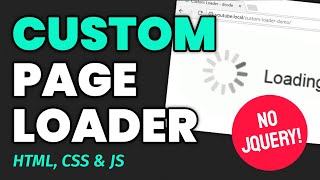
Hey guys how you going? My name is Dom and today I want to show you how to make this custom page loader using HTML, CSS and JavaScript. It's actually quite straightforward and it works like this: if I refresh this page here we get a full white background, a loading GIF. When the page is done loading it fades out and now the page is fully usable. These images here are quite a large file size which is why I chose them for this example. Let's see how it actually works.
Preparing content to load: adding images
So inside your code editor here you want to first have some images or some content to load behind the scenes. So I've got these images here: image 1, image 2 and image 3. I'm going to import these right now. So I'm going to say an image tag, give it a source of image1.jpg and a class of thumb. Do the same thing for these other two. All right, here is our content.
Styling the thumbnails
Okay so I'm also just going to target the thumb class and add some quick styles to it. So I'm going to say .thumb, give it a height of 100 pixels, a border of one pixel solid and then black, and a margin of let's just say 10 pixels. So I'll save this one, go in the browser and then refresh. We'll see how we go. All right perfect, perfect.
Creating the loader element and inserting the GIF
So now for the actual loader part. We can represent this loader on the screen by using a div class. So in the body I'm going to make a new div and give it a class of loader. Now inside this div I'm going to add that loading GIF inside it. It's right here loading.gif, so I'm just going to say image source loading.gif and give us some alt text of loading and then dot dot dot. All right, if I save this one, go in the browser, refresh, we should see that loading GIF on top.
Basic loader styling: fixed, full-screen and z-index
But we want it obviously that way. To achieve that we need to first start by working on the loader class. So in your CSS make a new rule for .loader. All right now the position property for this loader will be fixed, that way it can be on top of everything else and when you scroll down the actual loader won't move as you scroll down. Also give it a z-index of 99 to ensure it's on top of everything else. With these two properties here the loader is now on top of everything else and it's not going to scroll down as you scroll. So from here we're going to say top zero and left zero. This makes sure the loader is starting in the top left corner of the window. Now for the width and height of this loader going to say 100% and 100% for the height also, that way it's full width and full height. Now for the background color for now we're going to make it red to see how it looks. I'll save this one, go in the browser, refresh and we see this big red box.
Centering the loading GIF with Flexbox and sizing
For the loading GIF we're going to make it centered. To do this we can use the Flexbox display on this loader. So we'll say display: flex. We'll save this one, refresh and we get this right here. To center this we can use the justify-content property and this will center it horizontally. To center it vertically we use the align-items property and make that center also. If I save this one, refresh we should see that right there. I'm also just going to add some width to this um loader to make it a bit smaller so I'm just going to say this gif make a small, we'll say .loader img going to say width of 100 pixels. Also make this background white to match the background of this gif here. I save this one, go on the browser, refresh we get the desired effects.
Creating the fade-out animation with keyframes
So to make it actually fade away we can use a keyframes animation. We can define this one down here. So we'll say @keyframes, we'll call this one fade. Now by default in this loader the opacity and the visibility CSS properties are going to be one and visible respectively. So for this keyframes animation we're simply just going to say at 100% we want the opacity to be zero and the visibility to be hidden. By default at 0% behind the scenes it's one and visible. We're saying 100% make it not visible here opacity and also visibility hidden and that will actually hide the image itself or the div loader itself. Now to actually make that animation happen we can add a new class to this loader class so we're going to say .loader.hidden. Animation: fade-out, it'll take 1 second. Also we're going to use the animation-fill-mode property here and give it the value of forwards and that right there makes sure that once this animation is done these two properties stick and maintain themselves.
Toggling the hidden class with JavaScript and testing
So now using JavaScript here we're going to apply the hidden class to this loader when the page loads. All right but for now let's just give this loader here the class hidden to see the actual effect. I'll save this one, go in the browser, refresh and we get this right here. It fades out straight away because there's no actual JavaScript here yet. So there we are. For the JavaScript part make this back to just simply loader. For the JavaScript we can add a simple event listener. So we'll say window.addEventListener on the load event I'm going to run this function. All right this function here is going to first get a reference to the loader div. So we can define a new constant down here we'll say const loader equals document.querySelector and pass in the loader class and that gives us the loader element. If I log out loader here we'll see how we go. I'll save this, go in the browser, refresh and just open the console real quick we get loader right there. We'll try again it's a bit of a delay here right or maybe I don't know but it's right there. Okay so with this now we can simply just say loader.className plus equals ' hidden'. All right so we're getting the class name which is currently just something like loader and adding hidden to that loader so the class will be eventually loader and then hidden. So that right there will make this animation kick into play. Okay now I'll save this one, go on the browser, refresh. All right okay what happened there I believe the... okay put a space right there rookie mistake. All right save this one, try again, there we go. Now it was quite quick. Inside your Chrome tools go to Network and you want to select obviously just firstly disable your cache so it actually has to force reload everything and also you can even make the throttle to 3G and that'll make the images load even slower. So if we try again we should see the design fix. We'll refresh. Boom there we go. Perfect and that is how you can make your own custom page loader using pure HTML, CSS and JavaScript. Thank you for watching and I'll see you later.