Introduction to WooCommerce Product Variations
In today's video I'll show you everything you need to know about woocommerce product variations. You'll learn how to set them up, manage them more easily, and make more sales by using the best practices revealed by research.
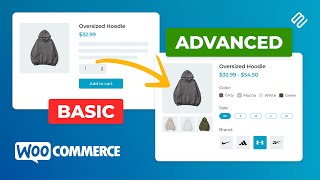
More specifically, I'll walk you through every step to go from a simple product like this t-shirt to a variable product with a bunch of different display and customization options. This includes adding attributes and variations manually and setting their prices and images both the hard way and the easy way. Then we'll see how different plugins can be used to display variations in all kinds of ways such as adding them to shop Pages, showing them in a bulk grid layout, adding the products to a table, or even creating entirely new product options instead of adding variations.
There's a lot to get through, so buckle up and feel free to use the video chapters to jump to any section that you would like to see in more detail. And as always, links are in the description below for any plugins that I mentioned in this video.
Creating Product Attributes
The first step in creating woocommerce product variations is to create attributes. Attributes can be anything but most commonly you'll see size and color, and then assigning those attributes to different products to create the variations. Here's how we do that. From the WordPress admin panel navigate to products, attributes, and you can see I've already set one up for color but we do need one for size, so I'm going to create that here. Add the slug, this will be the same thing in lower case and with hyphens instead of spaces. And you can enable archives and add the attribute.
Great. Now over here on the right, click on configure terms to add the different sizes. At the moment there aren't any, so we're going to add them on the left. And once you've added as many attributes as you'd like, then we can move on to the next step.
Assigning Attributes to Products
So now we're going to take a simple product and turn it into a variable product by assigning those attributes to it. Open up a woocommerce product that you'd like to add variations to and scroll down to the product data section. Select the variable product from the drop down, then click on the attributes tab and you can add or remove attributes that you've already created from the first step. For example, I could remove the size and I can add it back. Make sure that they're all visible on the product page and used for variations. And don't forget to select which values you would like to include, for example here large, medium and small. I can select all of them using this button. Then click the save attributes button to proceed.
Generating and Configuring Individual Variations
The final step is to add variations to this product. These will be the variations that customers will see on the front end of your site. Go to the variations tab and click on this generate variations button. Click ok, and it will add variations depending on how many different types of attributes that your product has.
You can see this warning label says that all the variations do not have prices, so we can make some bulk actions for this. We can set regular prices and enter a value. This will set the same price for all of the variations, so you can edit them one by one by clicking on this button here and modifying the price if you want to. You can also modify the image. You'll also probably want to modify the product SKU so that it's different from the other variations. And if necessary you can set the dimensions of the product down here as well as the weight. For example, I'm going to update the image.
But as you can see, having to do this for every single product can be quite time consuming, so this is definitely the slow way of doing it. Repeat these steps to add as many woocommerce variations as you'd like. Once you've completed all of your changes, you can click save down the bottom, and it'll look something like this on your site's front end.
Bulk Editing Variations with a Plugin
So that was the slow way, adding variations individually for each product. But what if you want to add lots of variations all at once to save time? You can install the WooCommerce Bulk Variations plugin from Barn2. This makes it way easier to add and edit many variations all at once. I'll show you what I mean.
There's a set of filters you can use to narrow down the list of products into similar items, for example, all of the large t-shirts. So now I can set the regular price for large at 22 dollars for example, and this is much faster than doing it the traditional way or one by one. There's an extra option letting you set variation images in bulk. For example if your variations all have the same color and they need the same image, then you can set those images together. Reset the filters, click on the color, and scroll down to set thumbnail. Choose your image, and there we just set three product images without having to do them one by one.
Displaying Variations in a Bulk Grid Layout
We've already seen how to use the bulk variations plugin to create our variations quickly, but that's not actually its main feature. The most important part of this plugin is the way it displays your variations on the front end of your site. It does this by letting store owners list products in a woocommerce variations grid layout. It also adds a quantity picker for each variation and a bulk add to cart button.
Allowing these bulk variation purchases is particularly useful for e-commerce stores that sell to wholesale buyers. Customers can simply use the woocommerce variations grid layout to enter how many units of each variation they'd like to purchase and click the add to cart button to add all selected variations in the correct quantities to the shopping cart at once. This is also the easiest way to Showcase variable products with only two attributes.
Research-Backed Best Practices for Display
We're quite a ways into this video and I haven't even mentioned the research about the best way to display product variations. It's not uncommon to find e-commerce stores displaying each variation as a separate product listing, scattering their colors, sizes, and styles across multiple pages. Please don't do this with the products on your site. Research from Baymard Institute revealed that this can cause your customers to abandon their searches.
Instead of this, you should display variable products as a single listing on the page with variations available for people to filter through and choose. By default, WooCommerce adds this 'select options' button to variable products. This takes customers to the single product page which is time-consuming and confusing. So to help with this, we released the WooCommerce Express Shop Page plugin that lets you display variations like size and color right on the shop and category Pages, keeping in line with the recommendations from Baymard. All the product options are available in one spot instead of being spread out over separate listings. Shoppers can see and select all of the choices on one page, choose the quantities, and add items to the cart much faster.
The Power of a Product Table Layout
If you're looking for a more comprehensive solution to the previous problem, then you might consider checking out our WooCommerce Product Table. By displaying products in a table layout, you can allow customers to select and add variations to their shopping carts from just about anywhere in your store. Variations can be listed as drop-downs in the front-end product table layout, like so. You also have the option to list each variation as a separate product with each one on a separate row of the table, but this is only recommended in very Niche cases as it's more confusing for ordinary customers.
Customizing Variation Price Display
Have you ever noticed that woocommerce displays product variations with different prices as a range? This lack of clarity can lose potential sales. For example showing the highest and lowest price makes it hard to predict the actual cost and products can seem more expensive to the consumer. To fix this, the WooCommerce Variation Prices plugin allows you to customize the variation price display. This might mean changing it to something like 'from fifty dollars' or 'up to one hundred dollars', listing each variation's price individually, or create a unique format like 'ten dollars per kilogram'. The plugin has further options like hiding the main price until an option is selected or updating the main price when a variation is picked. Although simple, Variation Prices adds an important feature to Woocommerce—controlling how variable prices are displayed. This can have a real impact on your sales because customers buy when prices emphasize value.
An Alternative: WooCommerce Product Options
The final plugin on our list isn't strictly a variations plugin, instead it's an alternative to variable products. Product variations are good but they have their limitations and some stores benefit from having a more customizable way to list their products, and that's where WooCommerce Product Options comes in. Product Options provides a completely different way of adding multiple choices to your products. Instead of using variations like we did before, the plugin adds its own interface for creating these options. In my opinion this is a better way to both create and display your product range, and here's why.
You can choose from a much wider range of display options. For example, you can display the add-on options as check boxes, text boxes, clickable images, file upload fields, and so on. This opens the door to selling types of options which simply aren't possible using WooCommerce variations. For instance, imagine that you want to add gift wrapping options to a product where the customers can choose a wrapping paper by clicking on a picture and type a message to be printed on the gift card. Well normally not possible, it's actually really simple with the product options plugin. You can also assign a much wider range of price options to each variant, like adding a flat fee or a percentage increase. You can set minimum and maximum quantities, use conditional logic to show or hide options based on the customers' other selections, and create advanced priced formulas with the very popular measurement pricing calculator.
The Importance of Product Filters
Beyond adding and displaying your variations, no store would be complete without a good filter plugin. I made a video reviewing the top 10 filter plugins which you can check out here, but the TL;DW (too long; didn't watch) version is that, surprise surprise, we recommend our WooCommerce Product Filters plugin. With it, you can easily add attribute filters to your store, allowing customers to quickly find products that match their preferences.
Conclusion
Don't take my word for it though, this is what our customers had to say when asked to review the plugin.
On this channel I love sharing plug-in recommendations as well as easy ways that you can improve your WordPress website, so maybe subscribe if you're into that. Now I'm going to read your mind for a second and guess that you want to watch this video next. And as always, thanks for watching.