Introduction and plugin overview
Just the page builder alone isn't enough to make your websites run smoothly. So, here are my seven plugins that I install on all websites right now. By the way, welcome back. If you're new here, my name is Reno. I'm a web designer and a no-code developer. A few years ago, I made this video about the 10 plugins I use. Now, I only install seven because some plugins have merged. They have more functionality, so we need less plugins, which is always good. So, let's start off with the list of seven plugins, and then at the end, I will give you two bonus plugins that I install sometimes depending on the project.
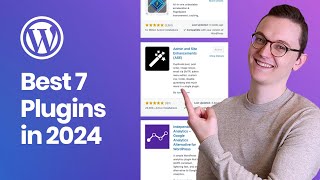
Admin and Site Enhancements plugin
We're going to start off with admin and site enhancements. It's a relatively new plugin, but I cannot live without it anymore because this plugin combines many plugins that I used before. If you install it, you will get this new option over here, Enhancements. Then you will see this simple menu and I always turn on a few things. For example, content duplication which will give you the nice duplicate option over here to duplicate a page or a post. Back in the day, I always used to install something like this, Duplicate Page or Duplicate Post in order to get the same functionality, but it's built in here.
Media replacement, which will allow you to replace images inside of your media library and then it replaces it throughout the whole website. So you don't have to go into your page builder and then click and replace everywhere. You just replace it straight from the source. It is a little bit hidden though. You have to click on Edit More Details, then scroll down and then you have the option over here to replace the media. So if the plugin developer is watching this video, please make it a little bit more obvious, maybe with a big button over here to make it a little bit easier to find.
They also have some options to customize how WordPress looks because you can disable things from the admin bar over here, which I've done, which then makes this top bar really clean. And you can also disable dashboard widgets, which are the widgets you can find on the dashboard over here. So, if you guys want me to make a separate video about this plugin, then let me know.
Classic Editor preference
For now, let's move on to the second one, Classic Editor. I still always install the Classic Editor as many people do, as you can see by the installation amount, because if you don't have this installed and you go to your pages and you click on Add New then you will get the Gutenberg editor which for some reason stresses me out because I don't see the normal input fields. I know there's a lot more possible with Gutenberg because you have a lot more blocks to choose from when you're creating a blog, but for pages and templates, I use a page builder anyways. And for blog posts, most of my clients just want simple text and images, so then they don't really need it.
So unless a client requests to have more options inside of their blog post, then I do not install Classic Editor. But that has never happened to me, so I always keep it active. And for the people with sharp eyes, I know that there is an option to also disable this inside of Admin and Site Enhancements, but I have found this one to not work perfectly. So that's why I still use the normal Classic Editor.
Independent Analytics as a Google Analytics alternative
A new one is Independent Analytics, which is an alternative for Google Analytics. This plugin is GDPR compliant, so for EU members this is really nice. It just gives you a little overview like this on your dashboard, which is enough for most clients. It just shows you the visitors, the views, and you can also go to the dashboard where you will find a lot more information. It actually looks really good. So, you don't have to go to Google Analytics, set up an account, and connect it like with other plugins like this one, ExactMetrics, which I still use on many websites because some clients just want Google Analytics. But if they don't specifically ask for it, just install this one. It's enough. And then if they ask more, you can always install another plugin. But I love this one. It's so simple and it just looks really good.
ManageWP and remote site management
The next one in the list is ManageWP. That is the plugin to connect a website to your ManageWP dashboard where all of my websites are. This allows me to log into any website really easily. It allows you to make backups for free once a month. And you can even, if you want, make your plugins update automatically on the website. They have this feature over here called scheduling. You can enable scheduling and then say every Monday at this time it should perform plugin updates. You can even perform WordPress updates. But if you click on Save Changes, this website will now be updated automatically.
In terms of the plugins, they have a lot more options here. For example, sending reports to your clients about analytics. It's just great. I did make a video about it. I will link it in the card or in the description. So, it doesn't do a lot on your website. It just connects it to your dashboard so that you have all your websites in one place.
Page builder choice: Elementor and ecosystem
Okay. Then, my page builder of choice is still Elementor and Elementor Pro. In the last three years, a few competitors have hit the market. So, Elementor has a little bit of competition, which is actually good because I think it will push them into the right direction if they see what other people want. But Elementor is still the king of page builders at this point. I love their integration with Crocoblock, which I still use a lot. So, I almost always install Elementor and Elementor Pro because most projects require things that are in Pro and it rarely happens that I only have to use the free version, but I will because it will save me a license, which is always a good thing.
Security plugins: Solid Security and alternatives
The next one is Solid Security and this was called iThemes before. They rebranded their whole company. I think SolidWP just bought them. I don't know what happened there, but it's different now. It actually does look better. And before I show you SolidWP, I do want to say that Sucuri also has a security plugin which is called Security Optimizer, which is also free. It works better if you are a Sucuri customer because then you have more features, but it's also a great plugin already. So, I would say test both of them. As you can see, their rating is exactly the same and they also have around one million installs. So, both of these players are great.
I know Wordfence is still the most popular one on WordPress, but I don't like it. I think it's too bloated. It just works a little bit too slow. I want something a little bit lighter. So, that's why in the past I worked with iThemes. I did use their pro version. I don't do that anymore. I now think that the free version is enough. Why? Well, because I've learned that most security problems can actually be prevented by the hosting company and not by the plugin itself. So, your hosting company should prevent the hacker to actually come into your WordPress. Adding a plugin is nice, but it's actually one step too late. So that's why you should not be too cheap when you're buying hosting and just buy from a global brand that is trusted like, for example, SiteGround which has a very good reputation in the markets in terms of security, but also companies like Hostinger. These companies are popular for a reason. It's not just because they offer something great. It's the whole deal.
Security Optimizer from SiteGround looks like this. Solid Security also looks really good. But for now, let's continue with the next plugin.
LiteSpeed Cache. This is right now my speed optimization plugin of choice. I've learned a lot about website speed in the last year, and I just want to say a few things. Please do not think that any of these speed optimizer plugins will solve a website that is built in a bad way. What I mean by that is that people don't know how to build efficiently. They don't know how to work with dynamic content, how to work globally, how to work with images. They install way too many plugins and then they hope that a plugin like this will solve all of their problems. That's not how it works. You should really focus on learning how a website should be built in a proper way so that this is just a nice little add-on that will make it a little bit faster instead of hoping that it will solve bad development.
That being said, hosting is also a big factor. Many people buy cheap hosting from some unknown company because they can get a good deal. It's fine. But don't expect their service to be fast. If you want a fast website, you should also invest in hosting because the bigger hosting companies, they have, for example, CDN, which is multiple servers around the world and then your website loads from the place that is the closest to where you are. So that anywhere in the world, your website loads fast. Smaller hosting companies don't have that feature and therefore it's just slower. So, I just wanted to say those things. There's a lot more technicality involved with cache which I am learning right now. But I can tell you one thing: if your hosting company uses LiteSpeed technology then please use this plugin as your caching plugin because this is made by that same company. For example, Hostinger uses LiteSpeed technology. So this one is really good if you're using Hostinger. But if you're using SiteGround, well then why not use their optimizer? They have their own speed optimizer which obviously works better with their servers. So again, I'm learning more about cache. And as always, I will share everything I know on YouTube. But if you already want to learn how to build websites in an efficient way so that your website will stay fast, well then you can check out my course because that's where I show how to do that. There will be a link in the description and also a little discount for subscribers.
Image optimization workflow (outside WordPress)
Now a question, why do I not use an image optimizer plugin anymore? And that is because I do that now outside of WordPress. That does not mean that an image optimizer plugin is bad because many people simply don't optimize their images and then they just upload it, then an optimizer plugin is great. But if you know how to resize and compress from your computer, why use an extra plugin if you can just upload it in the correct size and a very small file size to your WordPress.
So I want to show you one thing and that is that there are websites, for example like this one, imagetogo.com, where you can just upload an image or even multiple images like this. These images by the way are way too big as you can see 5,000 pixels and 1.7 megabytes which is way too much for a website. You can go in here and then you can put the quality down which actually will not destroy the image at all. And then you can also do resizing. So you can say for example I want this image to be 25% of the height and width it originally was and the compression will be applied. And then if you convert it you can now see that this image has become 180 kilobytes. So we went from 2.66 megabytes to 1.8, which is 20 times smaller. And look, it's still super sharp. So please just don't drop your big megabyte images inside of your WordPress. Use a website like this. This one is really good. I will link it down below. This one is also really nice, bulkresphos.com. Both are free to use, by the way. Great tools.
Why SEO plugins are optional now
And why is there not an SEO plugin in this list anymore? That is another question which I need to tackle because in the past I did promote Rank Math SEO and also Yoast SEO which are the two most popular SEO plugins in WordPress. These both plugins are still great. Yoast SEO does a little bit more in the background but Rank Math offers some things for free that are paid inside of Yoast. Again, both of them are good, but I offer this now as a separate service. So only if my clients request like, 'Hey, I want my website to rank high in Google,' then I say, 'Okay, but I'm going to charge you extra to optimize your website for SEO.' That's why it's not in my default list anymore. But that does not mean that I don't do SEO for my websites.
Bonus plugins: ACF / JetEngine and White Label CMS
Now, let's tackle the bonus plugins which I sometimes install. The first one is ACF, Advanced Custom Fields, the most popular custom fields plugin in WordPress, which now finally also offers custom post types. In the past, I did use a lot of this plugin, Custom Post Type UI, which is very popular. It was not that great to be honest, but it did the job for free, which was great. And then I combined that with ACF to have custom fields. Right now, this whole functionality is built into ACF. So, you don't need Custom Post Type anymore. But if you need pro features from ACF, that's where ACF Pro becomes a little bit more expensive. Because right now, they don't have a lifetime deal anymore. Which means that if you want it for unlimited websites, because this is something you use on a lot of websites, you're going to pay $250 per year. They don't have a lifetime option.
Personally, I still like to use Crocoblock because Crocoblock has JetEngine, which is exactly the same, well, not exactly, but very similar to ACF Pro and they offer it for a lot cheaper, but they also do have a lifetime deal if you want it. This package I promoted a lot in the past. I still do. This is the price of three years of ACF Pro, but you have it forever. Not only that, you get a lot more products from Crocoblock as well. For example, Smart Filters, which is a functionality that is great for listing websites when you're working with Elementor or JetSearch. I love their products, but for this list, I just wanted to focus on JetEngine or ACF. Sometimes it happens that I just use ACF and don't install JetEngine. That's only when I know it has to be really simple, like a title and a description and an image. Then I don't need to use a license from my Crocoblock package because the normal version of ACF is free and JetEngine is not.
And then the last one is a customizer plugin for your WordPress. I already showed you that you can disable some things with the Admin and Site Enhancement plugin, which is great. But if you want to add some things to your website, like a little logo in the top over here, then I recommend White Label CMS. It's not the best though, but it does the job. It gives you some options to add a logo over here, add a logo to your login page. So, only install that if you know your client is going to log in to your website and you want to give them a nice experience. But never add a plugin like this if it's not needed because you want to keep your website as clean as possible. And that's kind of like the theme in this video. Then for now, I hope that you learned something. And again, if you're interested in my course, all of the information is in the description. Okay, thanks guys and see you next.
Video end / outro
Okay, thanks guys and see you next.